Developers
The oneDOMUS Weather API delivers current weather data as JSON, ready to use as a Virtual HTTP Input in Loxone Config. All values are also available individually as plain text.
Download the template, replace YOUR_API_TOKEN with your own token and import via Loxone Config → right-click in Peripherals → Import template. All 13 inputs will be created immediately - no further settings needed.
Already have an active licence? Log in and download the file with your token pre-filled from your miniserver page.
Getting started
Step by step from portal to working weather data
Log in to the portal at weerbericht.onedomus.nl/en/login. No account yet? Register your Miniserver first.
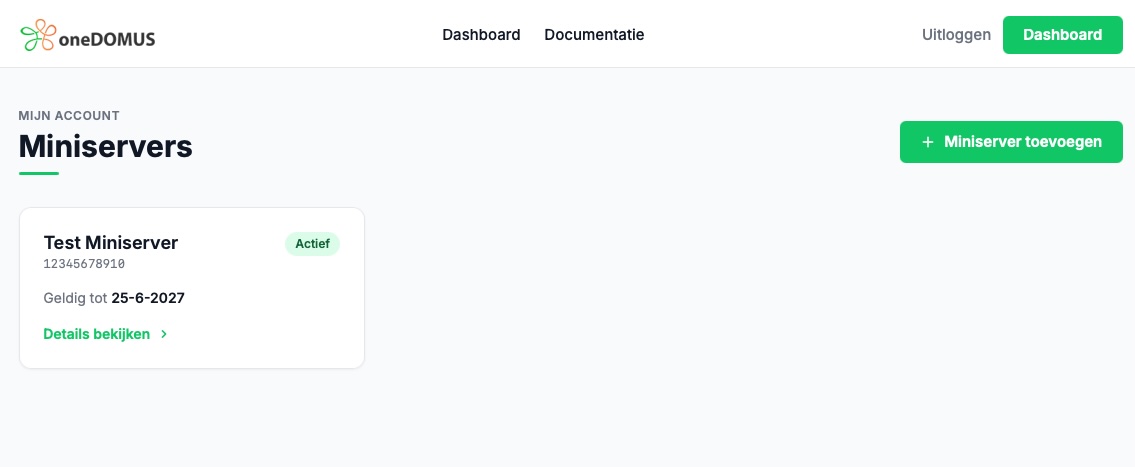
Click on your Miniserver to open the detail page. Then click Show token to reveal your API token.
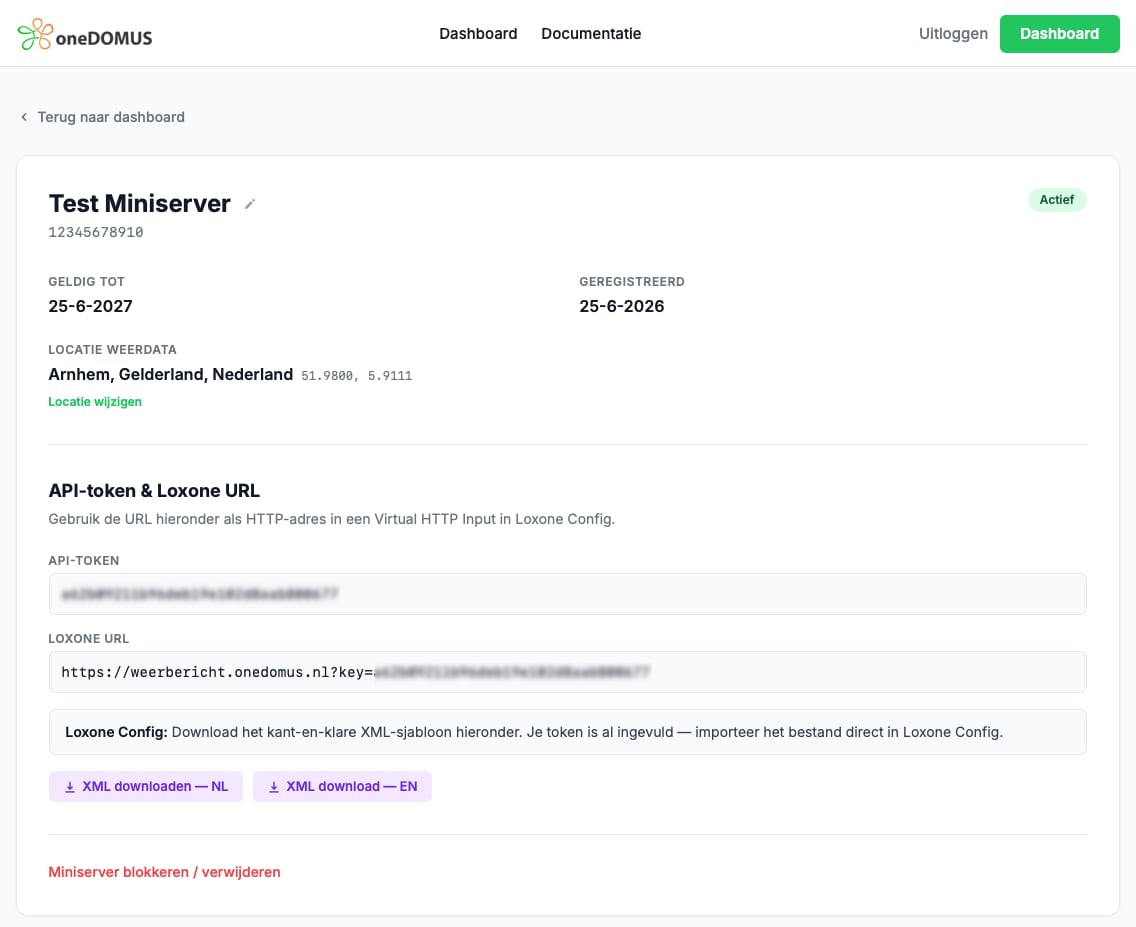
Scroll to API token & Loxone URL and click Download XML - EN. The file already contains your token.
Open Loxone Config and connect to your Miniserver.
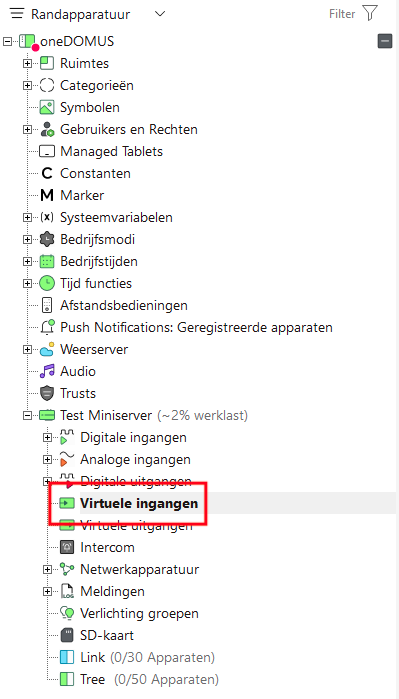
In the Peripherals panel, navigate to your Miniserver and click Virtual inputs.
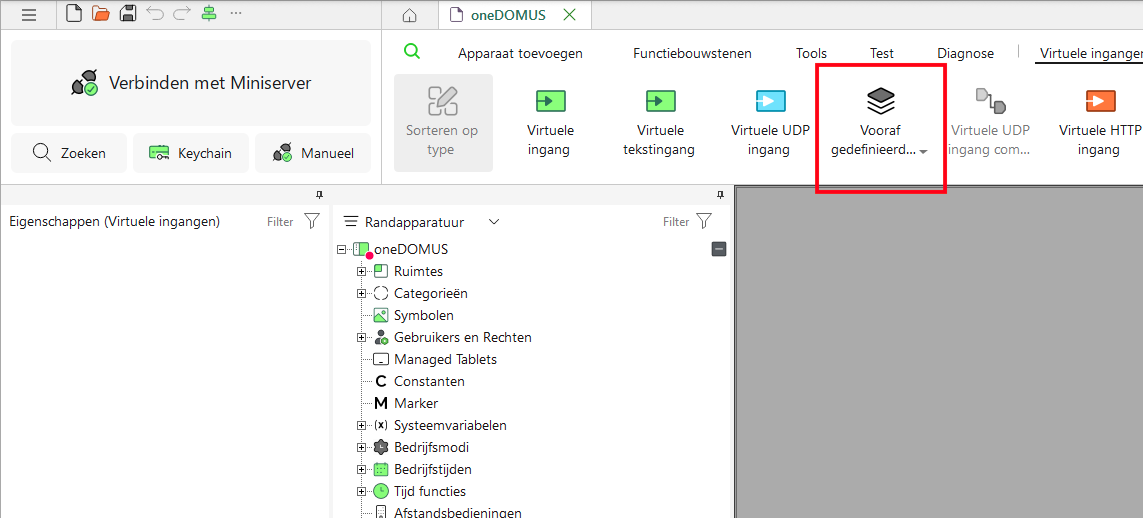
Click Predefined… in the toolbar at the top.
Choose Import template… from the dropdown menu.
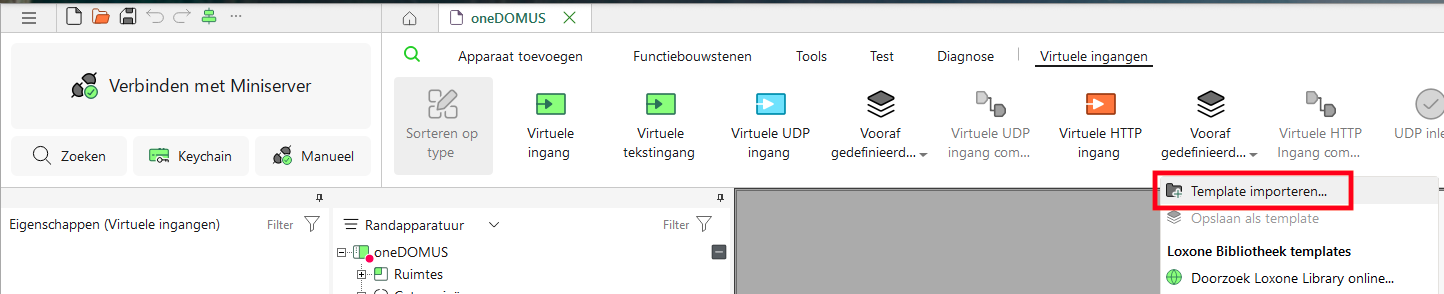
Navigate to the downloaded XML file and click Open.
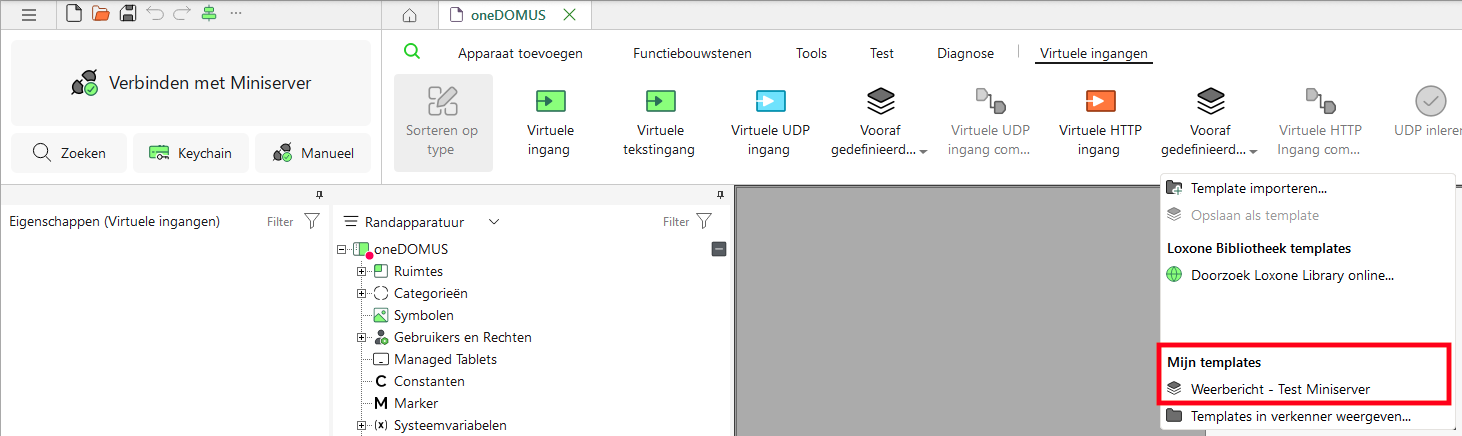
Click Predefined… again. The template now appears under My templates. Click the name to create the inputs.
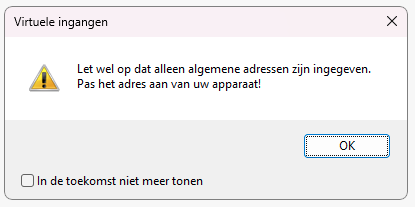
A message appears: "Please note that only general addresses have been entered…". Click OK.
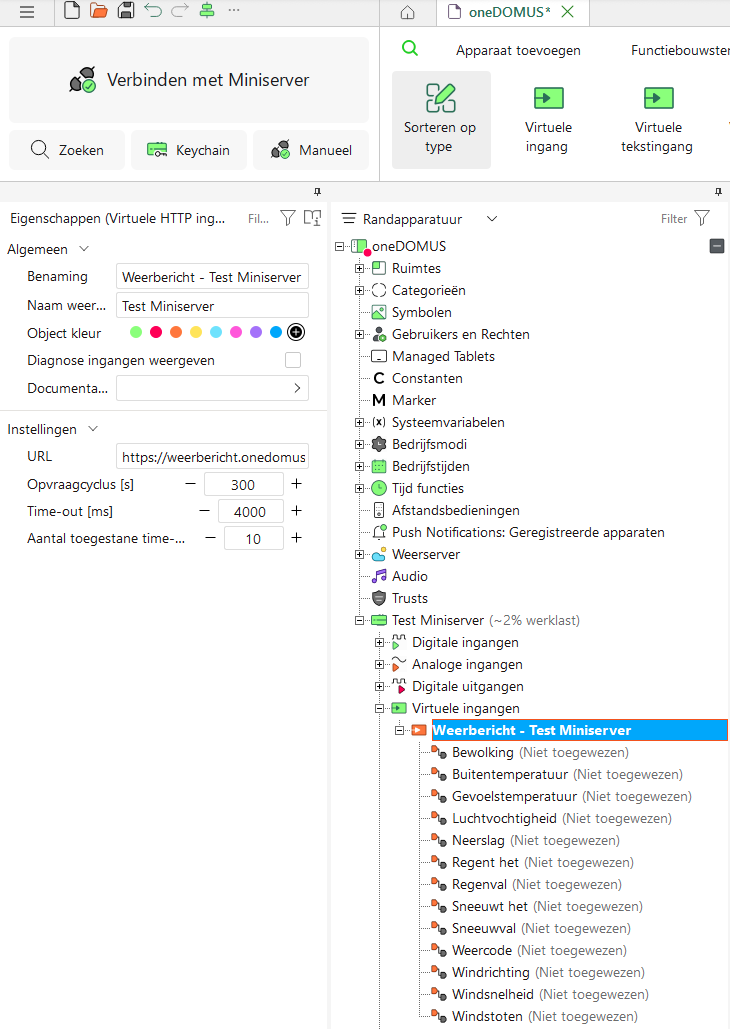
Done! All 13 virtual inputs have been created under your Miniserver. You can now use them on any page in Loxone Config.
Every request requires an API token. Retrieve it via Dashboard → Miniserver → Show token. Pass it as a query parameter or X-Api-Key header.
Query parameter
Header
/?key=your_token · application/json Returns all weather values in a single JSON object. Recommended for use in Loxone - one request, all inputs.
Request
Response (application/json)
Each field is also available individually as plain text (text/plain).
| Endpoint | Field | Unit | Example response |
|---|---|---|---|
/temperature | Outside temperature | °C | 18.4 |
/precipitation | Precipitation | mm/h | 0.4 |
/humidity | Humidity | % | 68 |
/windspeed | Wind speed | km/h | 14.4 |
weather_code)| 0 | Clear sky |
| 1 | Mainly clear |
| 2 | Partly cloudy |
| 3 | Overcast |
| 45 | Fog |
| 48 | Depositing rime fog |
| 51 | Light drizzle |
| 53 | Moderate drizzle |
| 55 | Dense drizzle |
| 61 | Slight rain |
| 63 | Moderate rain |
| 65 | Heavy rain |
| 80 | Slight showers |
| 81 | Moderate showers |
| 82 | Violent showers |
| 71 | Slight snow |
| 73 | Moderate snow |
| 75 | Heavy snow |
| 77 | Snow grains |
| 85 | Snow showers |
| 86 | Heavy snow showers |
| 95 | Thunderstorm |
| 96 | Thunderstorm with hail |
| 99 | Thunderstorm with heavy hail |
Weather data is refreshed every minute. The XML template is already configured correctly - import it and your Loxone Miniserver is ready to go.